 Chrunos
Download Rumble Videos: 5 Free Ways in 2026
In this post, you will learn 5 ways to download Rumble videos that actually work in 2026. All get you the full original quality (including 4K), none add a watermark, and most are completely free.
Quick Summary
| Method | Best For | Quality | Platform | Setup |
|---|---|---|---|---|
| PN Ripper Shortcut | iPhone / iPad / Mac | Original up to 4K | Apple | Easy (share sheet) |
| Online Downloader (rumble-video.download) | Any browser, quick grabs | Up to source quality | All | Easiest (paste URL) |
| Allavsoft | Desktop batch, channels, audio extraction | Up to 8K | Mac/Windows | Easy (paste link) |
| Browser DevTools Trick | Mac/PC, zero installs | Original stream | Safari/Chrome/Firefox | Medium (Network tab) |
| Browser Extension (Rumble Toolkit) | Firefox users, one-click | Original stream | Firefox | Easy (install addon) |
Method 1: PN Ripper Shortcut (Best for Apple Users)
This is my own shortcut, and it’s the fastest way to download Rumble videos on iPhone, iPad, or Mac. One tap from Safari’s share sheet, no setup beyond adding the shortcut, and it handles regular videos, Shorts, and live replays.
You may refer to the steps below to see how it works.
Step 1. Get this PN Ripper Shortcut. Open the icloud link in Safari or another browser and then click Get Shortcut.
Step 2. Copy the URL of Rumble video that you want to download.
Step 3. Open Shortcuts app and tap PN Ripper. If you don’t see it, enable it in Edit Actions.
Step 4. Wait a few seconds. The shortcut will save the video in highest quality to your Photos app. The Recents album to be exact.
What it handles
- Regular Rumble videos
- Rumble Shorts
- Live stream replays
- Audio extraction (MP3 or M4A)
Method 2: Online Downloader (Easiest, Works on Everything)
No install, no setup, fastest for quick grabs. I tested several tools and recommend rumble-video.download. It handles Rumble Shorts and live replays, adds no watermarks, and has minimal ads.
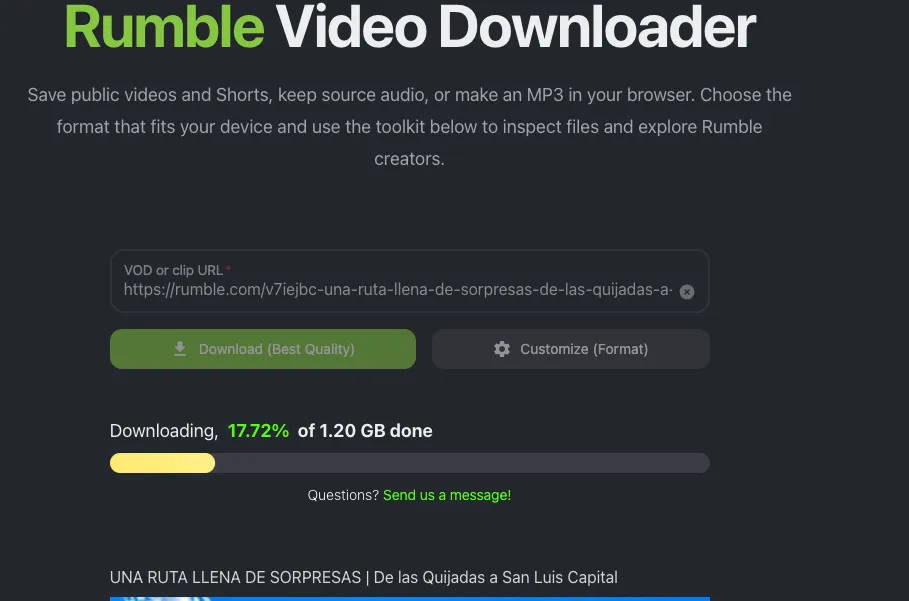
Step 1. Copy the Rumble video URL (Share → Copy Link).
Step 2. Paste the URL into rumble-video.download.
Step 3. Choose your preferred quality. The tool auto-lists every resolution, from 360p up to 4K.
Step 4. Tap Download. On desktop, the file saves to Downloads. On iPhone, it goes to the Files app — long-press → Share → Save Video to move it to Photos.
Method 3: Allavsoft (Desktop GUI, Batch, Channels, Audio)
Allavsoft is a multi-source video and music downloader. It uses a general stream sniffer that detects and downloads whatever media the page is serving. Since Rumble has no DRM, this works reliably even when site-specific downloaders break.
Step 1. Install Allavsoft for Mac or Windows.
Step 2. Copy one or more Rumble video URLs, or an entire channel URL.
Step 3. Click Paste URL in Allavsoft. It auto-detects all available qualities, from 360p up to 8K.
Step 4. Choose video quality or audio-only (MP3/M4A/WAV), then click Download.
Step 5. Files go to your chosen folder. You can also extract audio without re-encoding.
What it handles
- Single videos, batch downloads, entire channels, playlists
- Rumble Shorts and live stream replays
- Audio extraction (MP3, M4A, WAV, AAC)
- Subtitles
Limitations
Free trial = 5 videos and 5-minute conversions max. Windows and Mac only — no mobile app.
Method 4: Browser DevTools Trick (Mac/PC, Zero Installs)
This is the hidden trick no competitor covers. Since Rumble streams unencrypted video directly to your browser, the Network tab exposes the raw stream URL.
Zero tools needed, works in 30 seconds. Identical in Safari, Chrome, and Firefox, Mac or Windows.
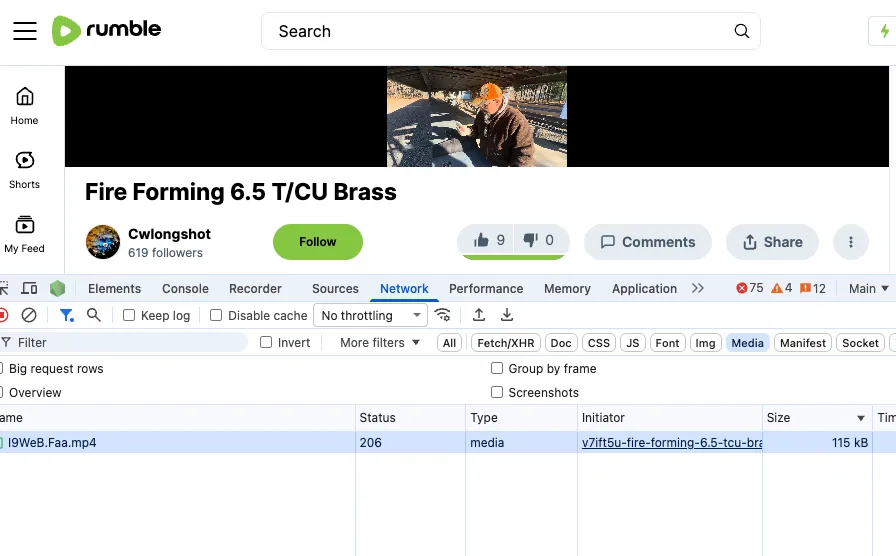
Step 1. Open the Rumble video in any browser. Let it play for 5 seconds so the stream loads.
Step 2. Open DevTools:
- Safari: Develop → Show Web Inspector (enable the Develop menu first in Settings → Advanced)
- Chrome / Firefox: F12 (Windows) or Option + ⌘ + I (Mac)
Step 3. In DevTools, click the Network tab, then filter by Media (or type mp4 or m3u8 in the search box).
Step 4. Reload the page or restart playback. You’ll see .mp4 and .m3u8 entries appear.
Step 5. Choose your quality:
- Low quality (360p-720p): Right-click the
.mp4entry → Copy → Copy Link Address. Paste into a new tab, then ⌘S (Mac) or Ctrl+S (Windows) to save directly. - High quality (1080p-4K): Right-click the
.m3u8entry (this is where the higher resolution streams live) → Copy → Copy Link Address. Then paste that URL into an HLS Downloader — our free HLS downloader fetches all the segments and joins them into a single MP4 at source quality.
Why this works
Rumble serves two stream types: a low-quality MP4 for casual playback, and an HLS (.m3u8) playlist pointing to higher-resolution segments. Both are unencrypted, so DevTools exposes both.
No third-party tool, no API key, no account — just you and the stream.
Limitations
Best for single videos. The .m3u8 playlist won’t play directly in a browser — it needs an HLS downloader to join the segments. That’s why we built our HLS downloader — no install, paste the URL, get the file.
Method 5: Browser Extension (Rumble Toolkit for Firefox)
If you want a one-click download button on every Rumble video page — no URL copying, no DevTools — try the Rumble Toolkit extension.
Install Rumble Toolkit from Firefox Add-ons
Once installed, it adds a download button, playback speed control, and a resolution selector to every Rumble page. Open a video, click download, pick quality, save to Downloads.
Alternatives
- Video DownloadHelper (Firefox and Chrome) — works on Rumble, but recently broke on YouTube after a March 2026 update. Still functional for Rumble.
- Rumble Toolkit — Firefox only, but purpose-built for Rumble. More reliable on this platform.
Limitations
Firefox only (Chrome Web Store restricts download extensions — you’d need to install Chrome extensions manually). Doesn’t handle live streams. Extensions can break when sites change their page structure.
Rumble’s Download Policy — The Fine Print No One Reads
Now that you know the methods, let’s cover the facts every other guide buries.
Rumble Has NO DRM
This is the most important thing. Unlike YouTube (DRM-encrypted DASH), Netflix (Widevine), or even TikTok (signed requests), Rumble streams as unencrypted MP4 or HLS.
If you can play it, you can save it. There’s no encryption to break, no token to steal. The stream is already right there in front of you.
Rumble Doesn’t Watermark Raw Uploads
This surprises most people. When a creator uploads a video directly, Rumble serves it as-is — zero branding, zero overlay, zero watermark.
The only watermark you’ll ever see is the “Rumble Studio watermark” added when creators edit in Rumble’s browser Studio tool. Premium creators can remove that. So 99% of Rumble videos have no watermark at all — no need for a watermark removal tool.
The Download Button Is Creator-Controlled, Not Platform-Blocked
Rumble lets creators toggle “allow downloads” in their dashboard. When on, a button appears. When off, it disappears. But here’s the catch: the video stream is still exposed either way.
The button is just a convenience feature, not a security gate. A video without a download button is still a video you can save.
Rumble Premium: The Catch
Rumble Premium costs $6.99/month or $99/year. It removes ads, lets creators remove the Studio watermark, and doubles your upload limit. It also promises offline downloads — but Rumble’s own support docs confirm:
Premium downloads are capped at 720p. Videos will be downloaded at 720p, if the option is not available, it will default to a lower quality.
Let that sink in. You pay $6.99/month, and you get a lower quality than free tools give you.
| Rumble Premium | Free Tools | |
|---|---|---|
| Max quality | 720p | 4K / 8K |
| Cost | $6.99/month | Free |
| Works on | App only | Mac, PC, iPhone, iPad |
| Download over | WiFi only | Any connection |
| Bulk / channel | No | Yes |
| Downloads survive cancellation | No | Yes |
Premium also has two more gotchas: downloads expire if you cancel, and they only work over WiFi — no cellular downloads. You don’t actually own the files you download with Premium.
Premium is fine if you just want ad-free 720p offline on your phone. For actual downloads, it’s a terrible deal.
Rumble’s Three Video Types
All three are downloadable:
- Regular uploads (VOD) — standard videos, with or without creator-enabled download buttons
- Live stream replays — automatically become VOD after broadcast; caveat: streamers can set them private
- Rumble Shorts — vertical clips, same stream structure as regular videos
What You Need Before You Start
- A Rumble video URL (
https://rumble.com/v123abc-title.html— Share → Copy Link works fine) - For private videos: log in to Rumble in your browser first
- For 4K: check the quality selector in the player — not all uploads are 4K
- A modern browser (Safari, Chrome, Firefox — all work)
Power User Note — yt-dlp (Rumble Extractor Currently Broken)
yt-dlp is normally the gold standard — 1,800+ sites, batches, channels, every quality tier up to 8K. But I tested it recently and it failed on Rumble. HTTP 403, “ExtractorError”, the whole thing.
It’s on the supported-sites list, but the Rumble extractor has drifted in late 2026. Rumble changed how it structures stream manifests, and the yt-dlp team hasn’t patched it yet.
If you still want to try it, update yt-dlp first, grab the nightly build from GitHub releases, and run a single-video test before investing time in a batch. If it works for you, great — it’s still the best tool for archiving channels. If it doesn’t, fall back to Method 1 or 3.
How to Download Rumble Live Stream Replays and Shorts
Live Stream Replays
Rumble automatically turns finished broadcasts into VOD. Use any method above on the replay URL — same format as a regular video.
Caveat: streamers can set replays to private. If you get a “video not found” message, no public tool can reach it. You’d need to be logged in and use Method 1, 3, or 4.
Rumble Shorts
Vertical short-form clips. Same stream structure as regular videos, so all 5 methods work. One note: the PN Ripper Shortcut might not detect Shorts from the Rumble app share sheet — use Safari’s web version instead.
Troubleshooting
| Problem | Cause | Fix |
|---|---|---|
| Video URL returns 404 or “not found” | Video deleted, private, or region-blocked | Confirm you can watch it logged in |
| Online downloader says “unable to fetch” | Parser didn’t catch Rumble’s stream structure | Switch to a different tool or use Method 1/3 |
| Downloads stall mid-file | Rumble CDN throttled the connection | Retry later, or use Allavsoft’s multi-connection engine |
| No 4K option available | Video doesn’t have a 4K source | Nothing you can do — download highest available |
| Rumble Premium “Download” button missing | App version too old | Update Rumble app |
| PN Ripper on Mac: “no Safari tab found” | Frontmost tab wasn’t Rumble | Bring the Rumble tab forward and run again |
| Browser extension doesn’t show download button | Rumble changed its page structure | Update the extension |
Frequently Asked Questions
Q: Do Rumble videos have watermarks? A: Almost never. Rumble doesn’t add watermarks to raw uploads. The only watermark is the “Rumble Studio watermark” on videos edited in Rumble’s browser Studio — and Premium creators can remove that. This is a real advantage over TikTok, which watermarks every saved video.
Q: Is downloading Rumble videos legal? A: Rumble’s Terms of Service allow downloading for personal offline viewing. Redistributing or commercial use is copyright infringement. Unlike YouTube, Rumble has no DMCA takedown process for personal downloads.
Q: Can I download private or followers-only Rumble videos? A: Yes, but you need to be logged in to Rumble in your browser first. Methods 1 (Shortcut), 3 (Allavsoft — uses browser cookies), and 4 (DevTools) all work with logged-in sessions. For more, see our private video downloaders roundup.
Q: Why doesn’t Rumble just add a download button to every video? A: Rumble does let creators enable download buttons. Most leave it off because they’d rather drive views and ad revenue. The button is creator-controlled, not platform-blocked.
Q: Can I download an entire Rumble channel at once? A: Yes. Use Allavsoft (Method 3) with the channel URL — it handles batch downloads natively. The PN Ripper Shortcut is single-video only.
Q: Why is yt-dlp not working on Rumble for me? A: The Rumble extractor in yt-dlp drifted in late 2026 and hasn’t been patched yet. Try updating to the nightly build, or use Allavsoft instead — it uses a general stream sniffer that doesn’t depend on site-specific parsers.
Conclusion
Rumble Premium might be a good deal for ad-free viewing, but it’s a terrible deal for downloading — 720p max, app-only, WiFi-only, and $6.99/month. For actual downloads at full original quality, you don’t need to pay anything.
The PN Ripper Shortcut is the fastest path for Apple users — one tap from Safari’s share sheet, no setup, original quality. Power users on Mac or Windows should reach for Allavsoft, which handles batches, channels, and audio extraction. And the Browser DevTools trick? Zero installs, zero dependencies, works in 30 seconds.
If you found a method that works for you — or ran into something I didn’t cover — drop a comment below. I test every method in this guide personally and update it as Rumble changes their stream structure.