 Chrunos
TikTok Ripper Private: Download Private TikTok Videos in Safari [2026]
TikTok’s own Save Video button disappears the moment a video is private or members-only. Public download tools are just as stuck: they only have a URL, while the video itself sits behind your account’s login. That is the exact gap TikTok Ripper Private fills.
Instead of asking a third-party server to fetch the video, this shortcut runs JavaScript inside the Safari tab you already have open. It reads the video data TikTok has embedded in the page for your session, then hands the file to Safari’s normal download manager. Anything your account can watch, it can save.
Here’s everything you need to know: what to prepare, how to run it on iPhone, iPad, and Mac, where the file goes, and how to fix the errors you might run into.
Why Private TikTok Videos Need a Different Downloader
Most TikTok downloaders work by sending a video URL to their own server. That works for public posts, but a private video has no public file to fetch. Request it without the account’s session and TikTok answers with 403 or a restricted-content error.
Even with the page open in your browser, you can’t just grab a clean link. TikTok hydrates the video object after the page renders, so the media URL only exists inside the page data that loaded for your logged-in session. That’s why this shortcut has to run on the live page — it reads what the page already knows instead of asking TikTok again. If you only need public videos, the regular TikTok Ripper shortcut is the simpler choice.
Before You Start
- Safari, logged in to TikTok with the account that can see the video.
- The video open as a detail page:
www.tiktok.com/@user/video/<id>— not the scrolling For You feed. - The page fully loaded at least once. Let it play or pause for a second so TikTok renders the video data.
- Works on iPhone, iPad, and Mac.
If this is your first time using Apple Shortcuts, our beginner guide on how to get started with Siri Shortcuts covers the basics in a few minutes.
Get the Shortcut
There are two separate shortcuts — one for iPhone and iPad, and one for Mac. Pick the one that matches your device. Both work the same way: they run JavaScript on the live Safari tab to grab the video data TikTok has already loaded for your logged-in session.
iPhone and iPad
On the first run, allow the permission prompt if one appears. The shortcut needs to run JavaScript on the current Safari page.
Mac
On first run, macOS will ask for Automation permission to control Safari. This is required so the shortcut can inject its script into the active Safari tab.
Run It on iPhone and iPad
This is the normal way to use it.
Step 1. In Safari, open the TikTok video so the address bar shows /@user/video/<id>.
Step 2. Make sure you are logged in and the video is visible. Start it once, then pause if you like.
Step 3. Tap the Share button in Safari’s toolbar.
Step 4. In the share sheet, scroll the app row and tap the shortcut name.
First time only: the shortcut may be hidden. Tap Edit Actions… (or More) at the bottom of the app row, then turn the shortcut on in the list. It stays there for every future share.
Step 5. A notification appears almost immediately with the video title. That means the download has started — not that it has finished.
Step 6. Safari shows a download prompt near the top of the screen. Tap Download and watch Safari’s download indicator (the arrow in the address bar or the Downloads list) for completion. Larger videos can take a while.
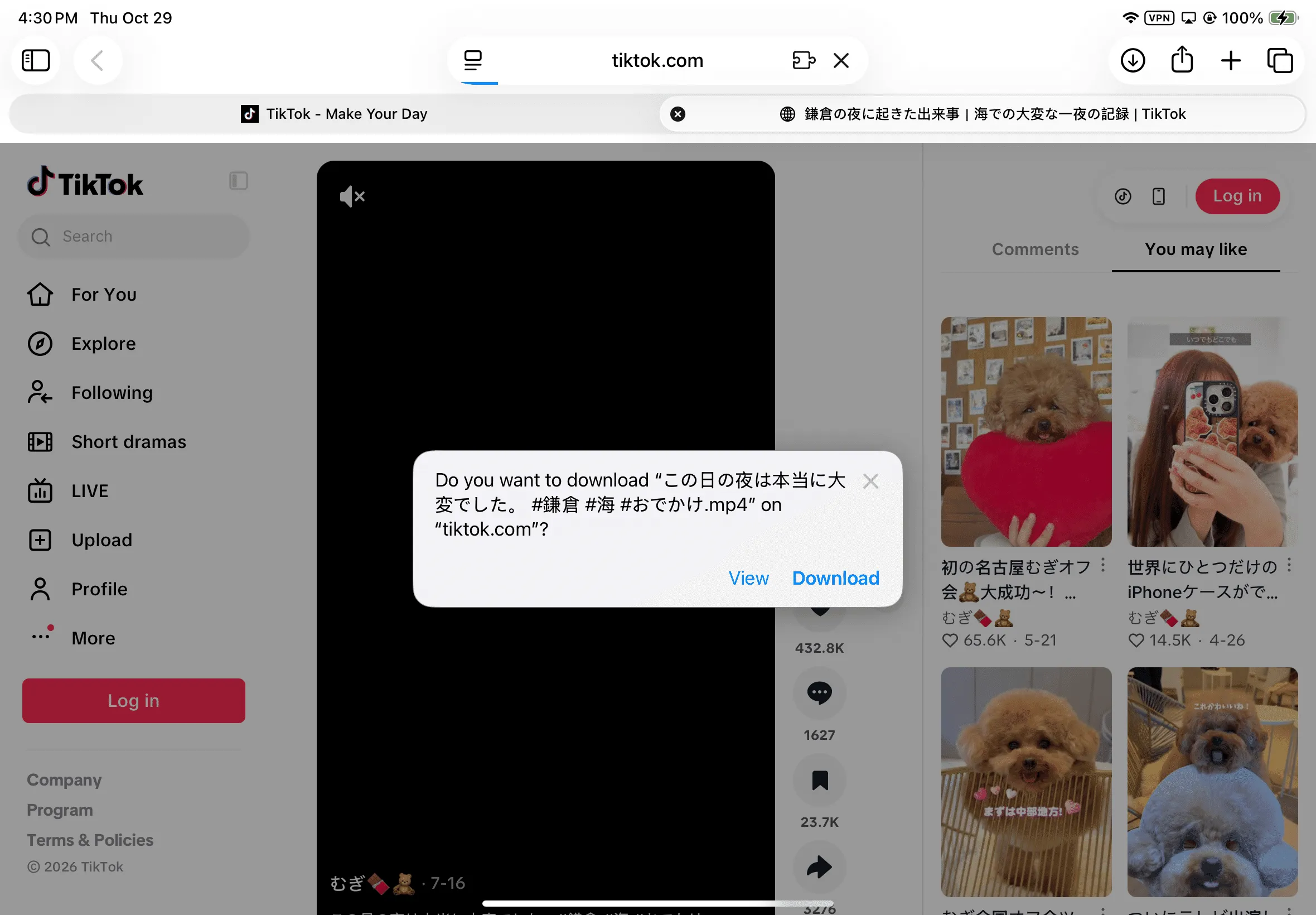
Even if the shortcut shows a JavaScript error before the download prompt appears, that is harmless — the download will still work. See the troubleshooting section for a screenshot of this non-fatal error.
The shortcut always acts on the frontmost Safari tab. Whatever TikTok page is active when you tap it is the page it reads.
Run It on Mac
The Mac shortcut works differently from iPhone — it cannot run from a Safari share sheet. Instead, it controls Safari from the outside via Apple Events, so the video has to be sitting in an active Safari tab while you run the shortcut from the Shortcuts app.
Step 1. Open the TikTok video in Safari and leave it as the active tab — frontmost, with the window focused.
Step 2. One-time setup if you have never enabled it:
- Safari → Settings → Advanced → tick Show Develop menu
- Then Develop → Allow JavaScript from Apple Events
Without this, macOS refuses to let the shortcut inject its script into the page.
Step 3. Open the Shortcuts app, select TikTok Ripper Private for Mac, and press ▶ Run.
Step 4. Leave Safari alone for a few seconds. Do not switch tabs or close the window while it works.
The shortcut triggers a download that shows up in Safari’s Downloads popover. You can also run it from the Shortcuts menu bar item or dock shortcut for one-click access once the tab is ready.
Where the Downloaded File Goes
| Device | Location |
|---|---|
| iPhone / iPad | Files app → Downloads |
| Mac | ~/Downloads |
Move It to Photos on iPhone or iPad
Safari downloads to Files; it cannot write to Photos on its own. To add the video to your library:
- Files → Downloads → long-press the video → Share → Save Video, or
- If Safari opened the video in a player instead of saving it, use the Share sheet there → Save Video.
If Downloads doesn’t show the file at all, our guide on downloading files on iPhone with Safari walks through the Safari download settings that control where files land.
Troubleshooting
| Symptom | What it means | Fix |
|---|---|---|
| Shortcut is not in the share sheet | Not enabled in the app row | Share sheet → Edit Actions… → enable it |
| Nothing happens, no notification | It ran against a TikTok feed page, not a video page | Open /@user/video/<id> and retry |
REHYDRATION data not found |
Page not fully loaded | Reload the video page, wait for it to render, retry |
Video data missing (statusCode=…) |
The page did not hydrate the video object | Reload and retry |
Restricted content (statusCode 10216 / 10222) |
Deleted, region-blocked, or your account truly cannot see it | Check that you can watch it manually in the same session |
HTTP 403 — CDN refused in-page fetch too |
Session expired, or the URL belongs to another tab or session | Log out and back in to TikTok, reload, retry |
| Mac: “Allow JavaScript from Apple Events” error | Safari setting is missing | Develop → Allow JavaScript from Apple Events |
| Mac: nothing happens while Shortcuts is frontmost | Safari tab was not active or was switched mid-run | Bring the TikTok tab forward first, keep it focused |
| Download finished but no file | Safari saved it under a sanitised caption name | Search Files / Downloads by the title shown in the notification |
A JavaScript error occurred in the page (or similar timeout message) |
Shortcut’s page script timed out waiting for TikTok’s data — this is non-fatal | Just ignore it; Safari’s download prompt will still appear |
A failure that happens after the download starts shows up as an in-page alert in Safari rather than a Shortcut alert. That is expected: the shortcut has to report back before the transfer finishes.
A Harmless Script Error You Might See
Every now and then the shortcut shows a JavaScript timeout error while waiting for TikTok to respond. This error is purely cosmetic — the download has already been triggered on Safari’s side and will proceed normally. Here is what it looks like:
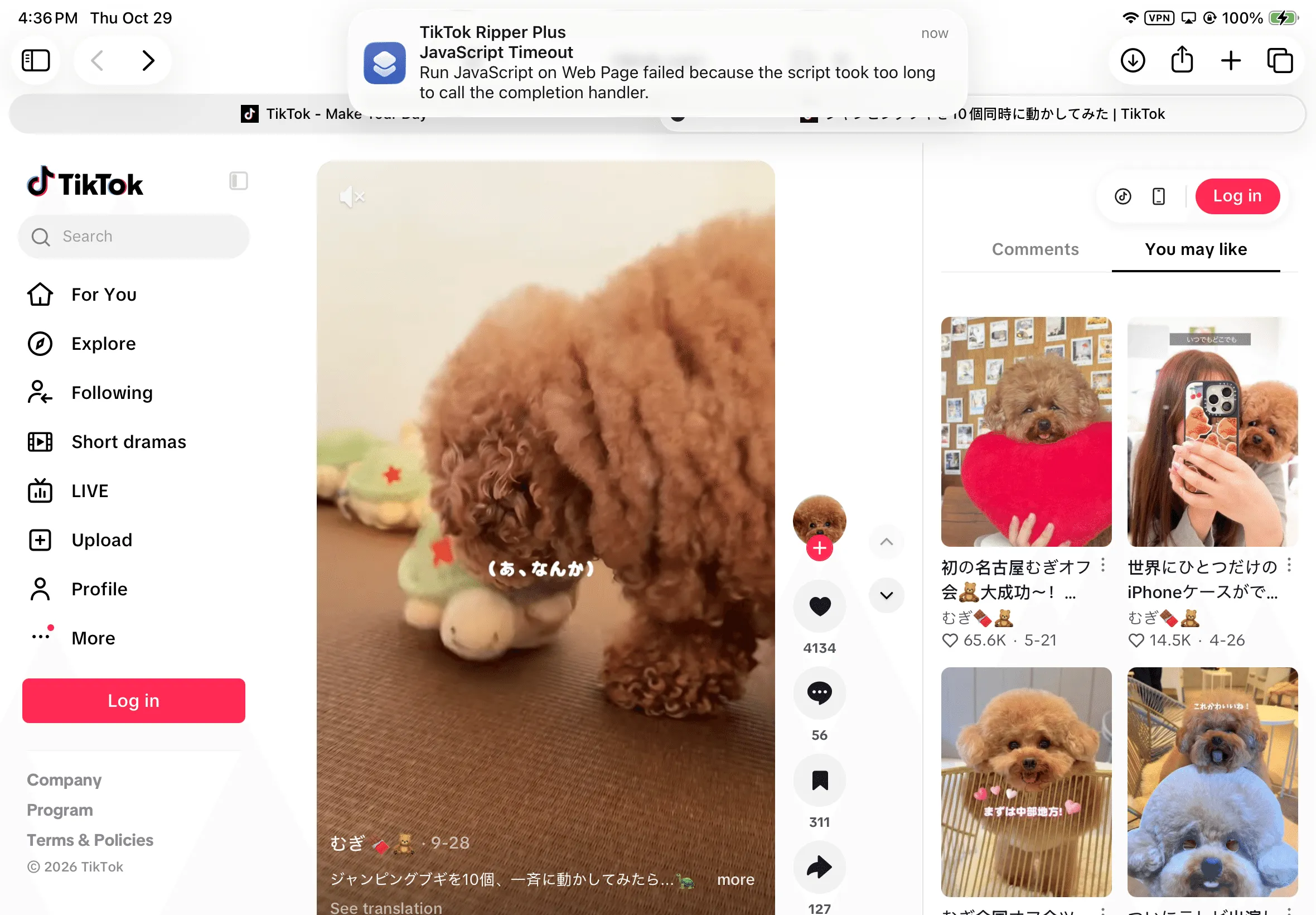
Even when that error appears, Safari still shows the download prompt. Look for it and tap Download — your video will save as expected:
Limitations
- Single video per run. No batch and no profile scraping. For public profiles, use TikTok Ripper Profile to download all videos from a user in one go.
- Video posts only. Photo carousels are not supported.
- Requires the live page. It reads data the page already loaded; it cannot work from a URL alone.
- Requires a logged-in session. Anything visible only to a specific account must be opened while logged in as that account.
Privacy
The shortcut fetches only the video URL TikTok has already embedded in the page you are viewing. It does not log you in, does not export or store your cookies, and does not send your session anywhere. Nothing leaves your device.
The download itself is handled by Safari’s own download manager, so the file travels over the same connection you are already using to watch the video. There is no third-party server in the middle, no analytics, and no account credential to enter. The shortcut also only reads the tab that is currently open — it does not scan your browsing history, open new tabs, or touch any other site.
Conclusion
TikTok Ripper Private is the only reliable way to save a video that your account can see but a public downloader cannot reach — because it works from inside the page, not from a bare URL. Set it up once, enable it in the share sheet, and the whole process becomes two taps: open the video, share, done.
If you run into something not covered here — a new error message, a video that won’t load, a TikTok update that breaks the script — please drop a comment below. I read every one and update the shortcut or the guide as soon as I can. Your feedback is what keeps it working.
For everything else, here’s the next step: if you want to download an entire public profile at once, use the bulk TikTok downloader guide. And if you only need standard public videos, here is how to download TikTok videos without a watermark in a few seconds.