 Chrunos
How to Use Chimera to Download Music from Deezer and More
Note: Chimera is discontinued. Another open source program OrpheusDL inspired by Chimera is available.
In 2024, I still love to listen to music on my iPod Classic even though music streaming services like Spotify, Deezer, and Tidal, are good. I prefer using Spotify to discover music and download music from Deezer or Tidal because the quality is better.
In this article, I will introduce you Chimera, a multiple source terminal-based music downloader with audio search engine, which allows you to download music from Spotify, Deezer, Tidal, SoundCloud, Qobuz, Napster, and Google Play Music.
About Chimera
As mentioned, Chimera enables you to download quality music (Hi-res) from a lot of music streaming services. It is literally downloaded from their service, except Spotify because Spotify music is DRM (digital rights management) protected. When you download Spotify music, you can choose the source from Deezer, Tidal, or Qobuz.
You will need a paid account to download music from Tidal, Qobuz, Google Play Music, Napster. For Deezer, a free account is fine and no account needed for SoundCloud.
Chimera is available for Windows, Mac, Linux, and Android. However, there is no GUI app, so you need to set it up from the command line.
This tool is developed for educational use or personal use only, you are not supposed to use it for pirating or distributing music. It may be illegal to use such software for downloading music, so be informed.
How to Set It up
The process is a little bit different according to the system you are using. I will just take Windows as an example to show you step by step. You can also refer to the video below, which is more clear.
Step 1. Download python from here and install it. Preferably, download the 64-bit version. When you install it, be sure to check the option “Add Python 3.8 to Path”. If you miss that, you need to add the path manually.
Step 2. Download the latest release of Chimera and extract it.
Step 3. Copy the Chimera folder to C: drive if it is not.
Step 4. Press Windows + R and type “CMD” to open a command prompt window. Then type ”cd [the path to Chimera folder]”.
Step 5. Type the following command and press Enter to install the required the requirements.:
pip install -r requirements.txt
Step 6. Type “main.py” to launch Chimera and it will open the Chimera Config page from your web browser where you can input all your accounts of music services that you want to download music from.
That’s all the setup. If you want to download Spotify music, you need to create a Spotify developer account, generate client ID, client secret, and input them to the Chimera Config page. As you can see the redirect URL is not editable from Chimera Config page, so you need to copy that and paste it to the Spotify Developer Dashboard.
How to Use It?
After setup, it is quite convenient to download tracks, albums, or playlists from any service that is supported. By default, it is Deezer if you have the account setup. Sometimes, it failed to login to Deezer automatically, so you need to enter the ARL value. For that, I have addressed in the previous post.
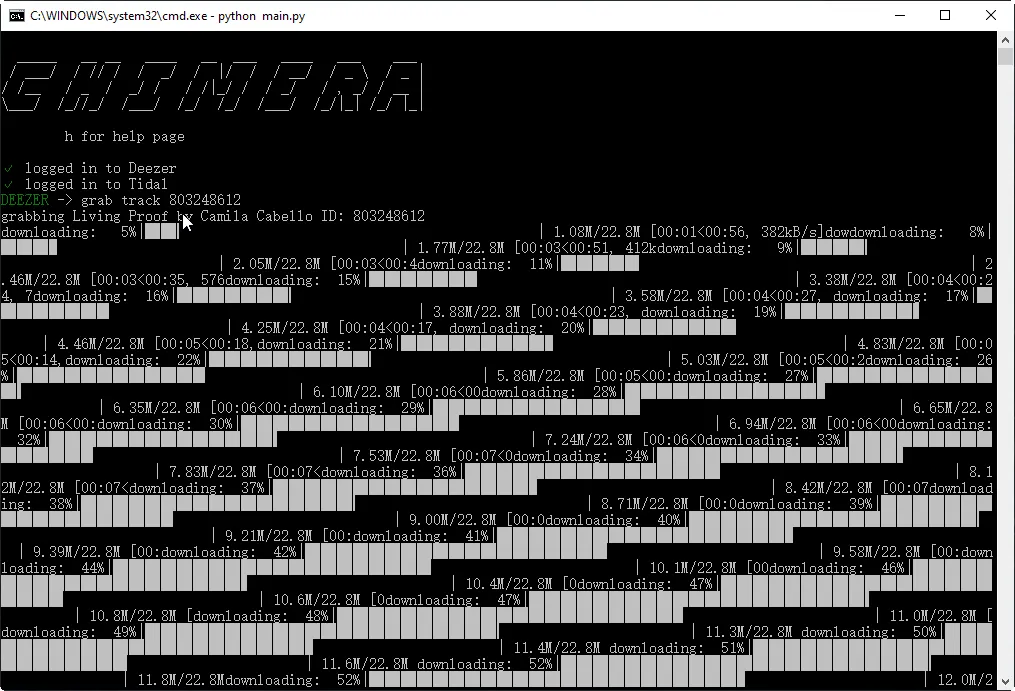
After logged in, you can just type “grab track [track ID]” to download a track from Deezer. You can also use the track URL instead of track ID. If you want to download an album or playlist, just use “grab album [ID]” or “grab playlist [ID]”.
If you want to download from Spotify, just type Spotify. When using Spotify for the first time, it will generate Spotify access token, so you need to type the command again to download Spotify music.
Listen and Download
With some more setup, you can also use Chimera to download the music that you are listening to. Of course, you need a microphone to get this to work.
If you want a GUI tool for downloading music and videos, you can check this tool. It is not free, but it can help you download media from thousands of websites.